


Check whether memory is limiting you
Observe memory usage while performing the task that feels slow. Extra RAM can help when the workload regularly needs more working memory, but it will not repair faulty storage or remove a processor bottleneck. Compare observations across a normal session instead of judging from a single peak.
Confirm the model's upgrade options
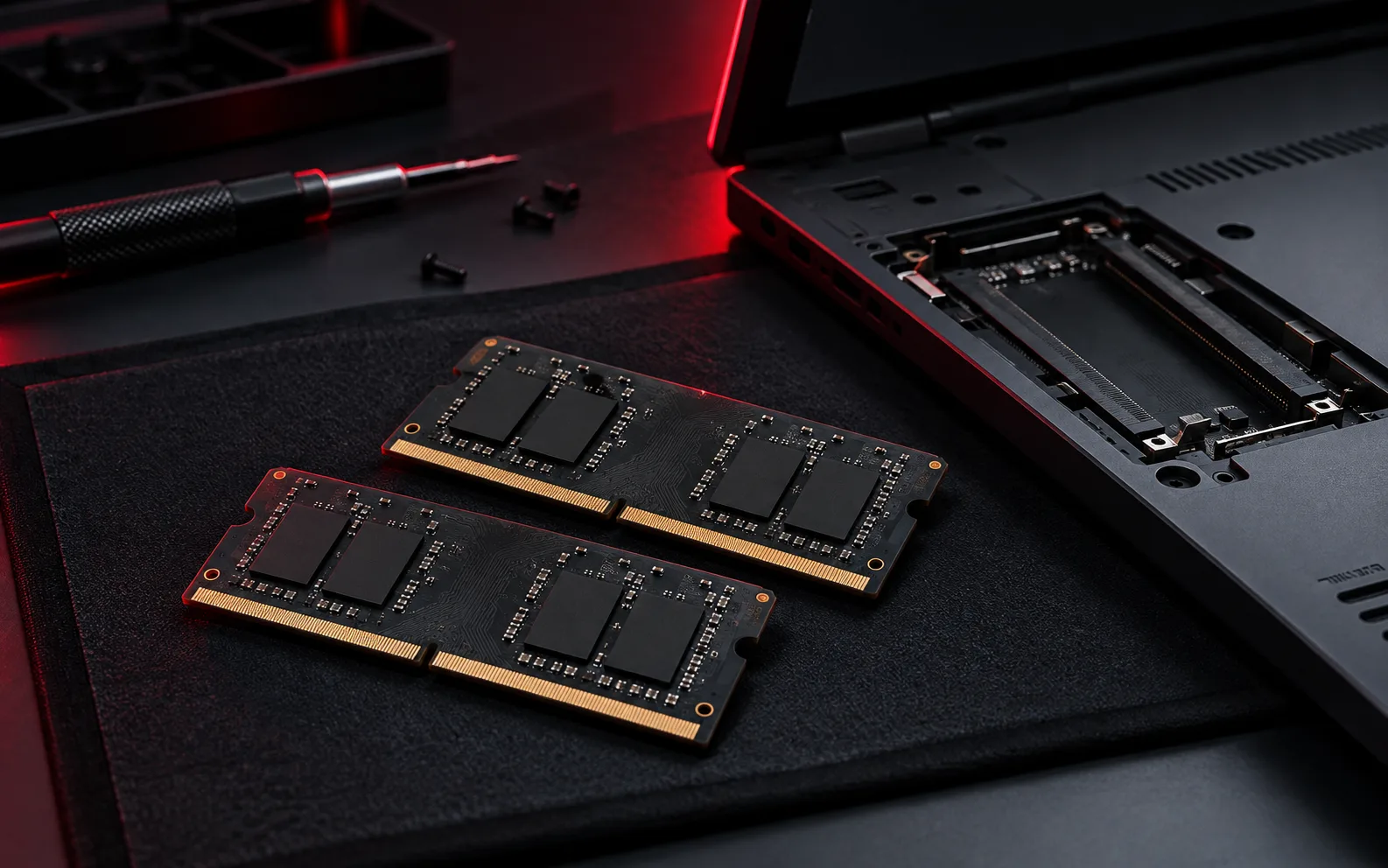
Check the computer's service documentation for supported memory type, capacity and slot arrangement. Some laptops have soldered memory or limited upgrade options. Desktop and laptop modules can differ physically, and memory generations are not interchangeable. Use the exact model rather than a broad product-family name when checking compatibility.
Plan installation and validation
Back up important files and follow the manufacturer's handling and power-disconnection instructions. If you are unfamiliar with internal work, request installation with the correct service procedure. After installation, confirm that the system recognizes the expected capacity and run the supported memory diagnostic.
Measure the result
- Repeat the original workload with the same applications.
- Compare responsiveness and memory use.
- Check for startup failures or new instability.
- Keep the original module and installation details until the upgrade has been verified.
Need help with your own device?
Describe the problem with the model, symptoms and checks already tried. For related help, explore computer service or remote support.