


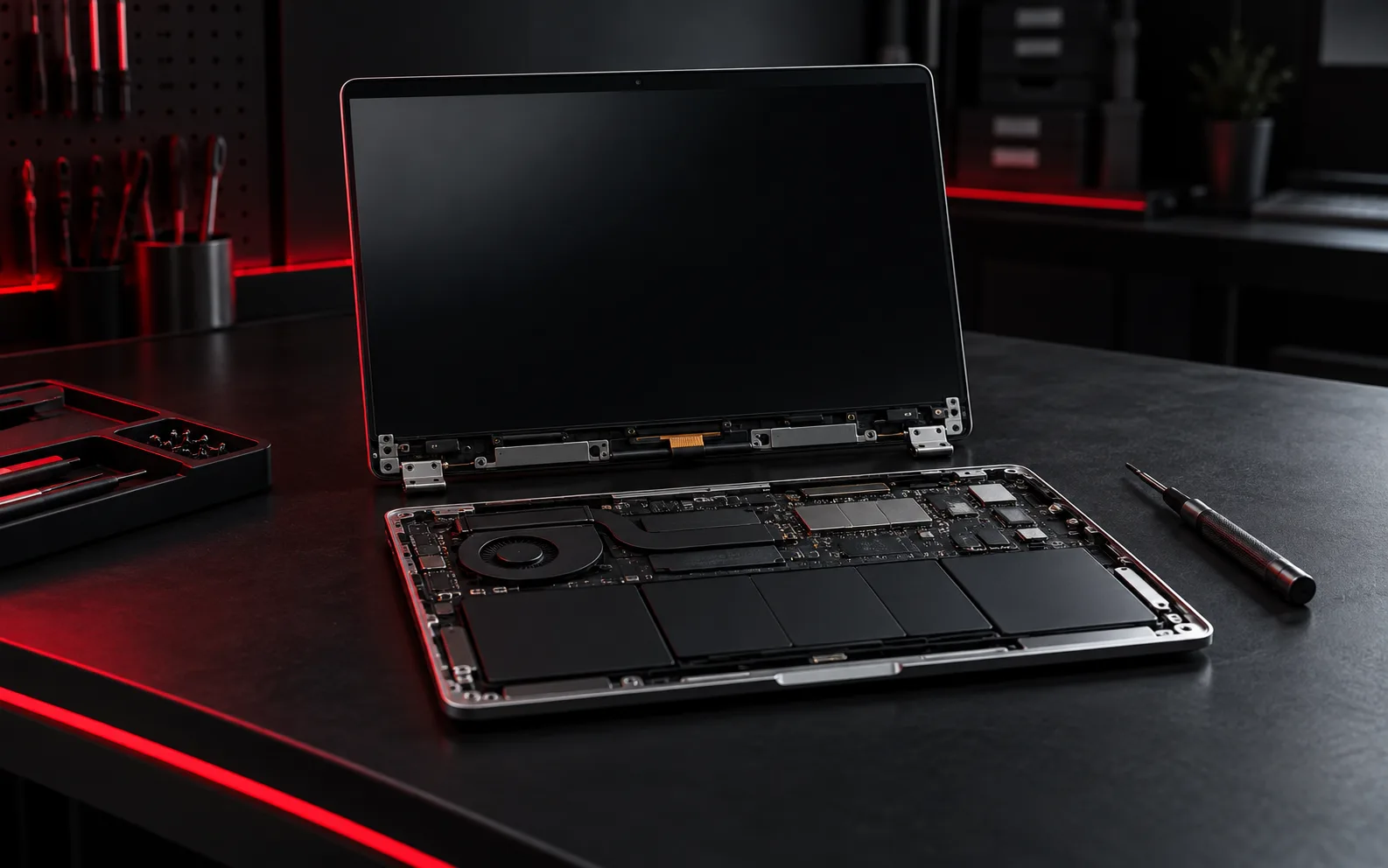
Distinguish a panel fault from no video
Cracks, localized dark areas and permanent lines can suggest display damage, but a blank screen can also have other causes. Note whether the device powers on and whether the manufacturer's logo appears. If supported, compare an external display and follow the model's built-in display diagnostic instructions.
Describe the pattern
Record whether the fault changes with lid position, brightness or an application. A cable or hinge-related problem can resemble a failed panel. Avoid repeatedly flexing the lid to force a picture. Photograph the symptom without exposing private screen content; a stable description helps the technician narrow the inspection.
Match the replacement properly
The exact model and panel specification matter. Resolution, size, connector, mounting and features such as touch support need checking. A similarly sized display is not automatically compatible. Inspect hinges and the surrounding housing at the same time so the replacement is not installed into a damaged structure.
Before and after service
- Back up important files when possible.
- Provide the exact device model and symptom.
- Agree the proposed part and work before installation.
- Test brightness, image quality, lid movement and any touch function during handover.
For device-specific or current product instructions, see Dell: laptop display troubleshooting.
Need help with your own device?
Describe the problem with the model, symptoms and checks already tried. For related help, explore computer service or remote support.