


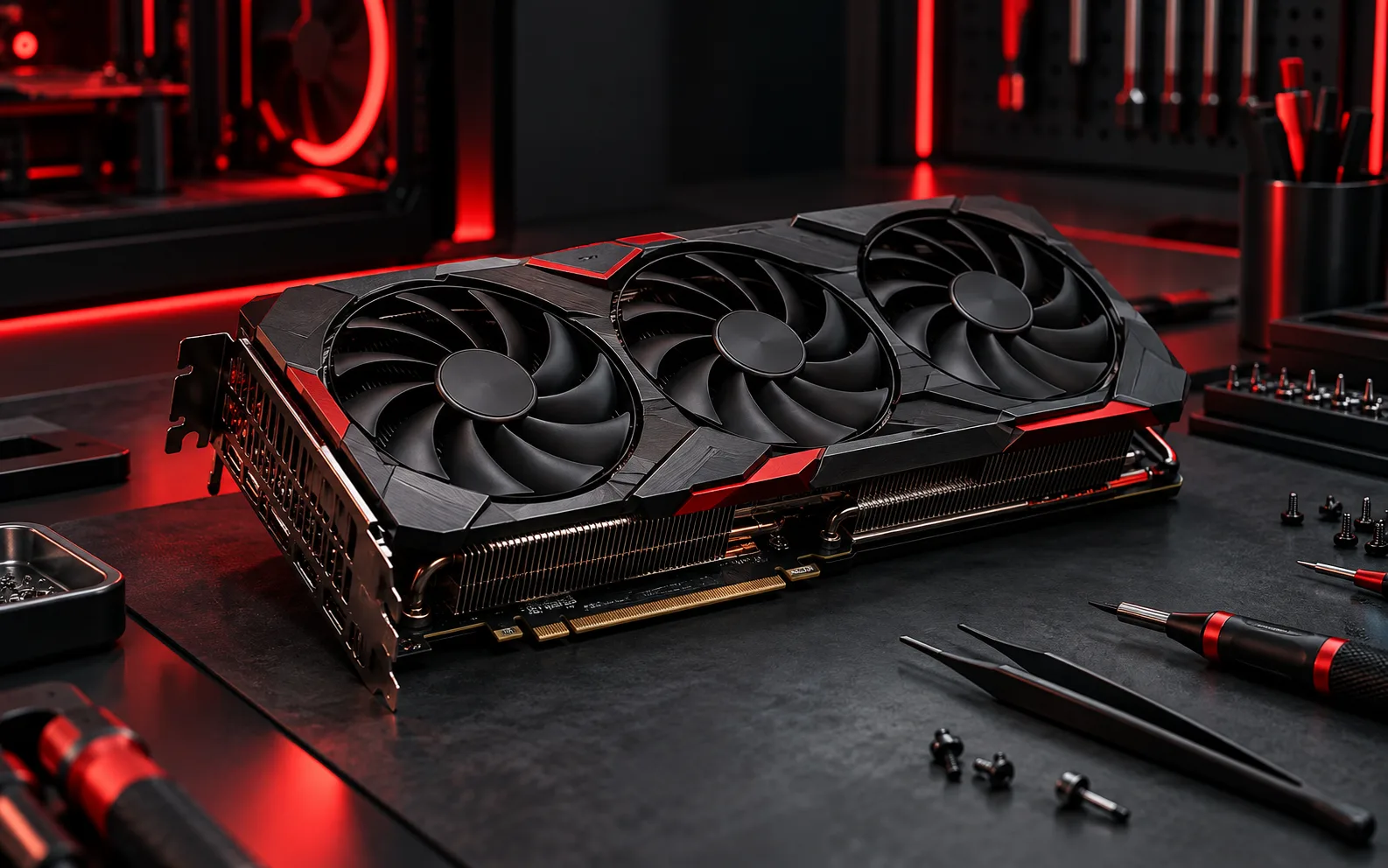
Record what you see
Visual artifacts, crashes or a blank display can involve graphics hardware, drivers, cables or the display itself. Note whether the issue appears before the operating system starts, in one application or only during demanding work. Screenshots and photographs can capture different parts of a display fault.
Isolate external causes
Check the cable and monitor with known working alternatives when available. Obtain graphics drivers through the component or computer manufacturer's support route. Review recent updates and settings changes before replacing hardware. If the fault only occurs in one application, test that application's supported configuration too.
Consider the whole system
Cooling, power and other components can contribute to instability under load. Use the manufacturer's diagnostic procedure and avoid repeated stress tests when the system is overheating or losing power. Laptop graphics may be integrated into a larger assembly, so repair options differ from those for a removable desktop card.
Decide after diagnosis
- Provide the exact computer and graphics model.
- List the workloads that reproduce the fault.
- Include external-display and driver comparisons already made.
- Ask for the diagnosed cause, repair scope and validation steps before choosing repair or replacement.
Need help with your own device?
Describe the problem with the model, symptoms and checks already tried. For related help, explore computer service or remote support.