


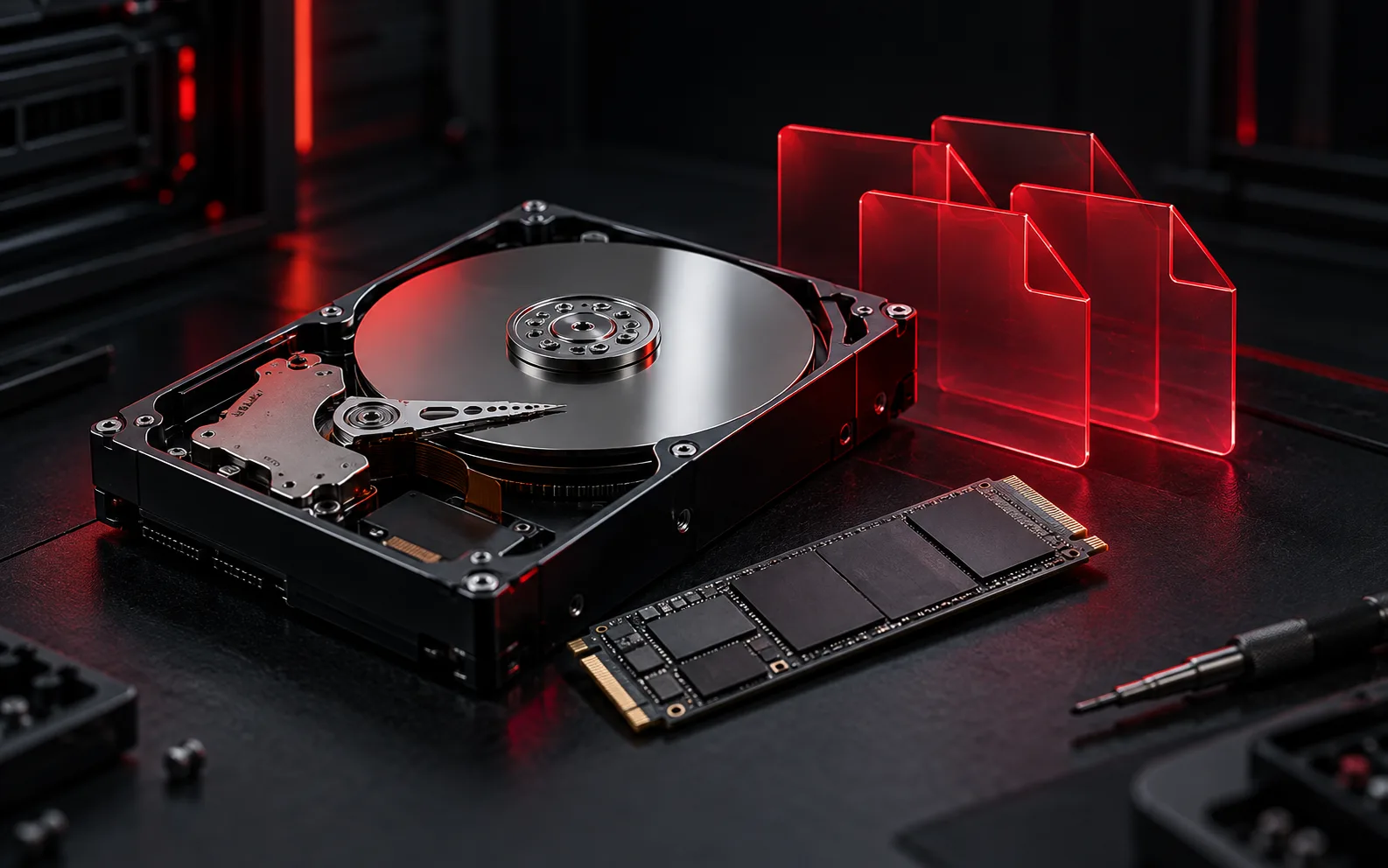
Stop writing to the affected drive
Deleted files are not always recoverable. Continued use can overwrite the storage they occupied, so stop downloads, installations and large copies on that drive. If the files are valuable, decide on a recovery approach before experimenting. A clicking, intermittently detected or physically damaged device needs a different approach from an accidental deletion.
Check existing copies
Look in the Recycle Bin, your backup and the relevant cloud service's deleted-file or version-history view. Confirm that you are checking the correct account and folder. Restore a test file first and open it to verify that it is complete. Synchronization alone does not guarantee that an older copy still exists.
Keep recovery output separate
Microsoft offers Windows File Recovery for supported local-storage scenarios. Read its current instructions and use a separate destination drive for recovered files. Avoid installing a recovery utility onto the source disk. For uncertain drive health or irreplaceable data, a professional assessment can preserve options that repeated scans may reduce.
Make the next backup verifiable
- Keep another copy on a separate device or appropriately configured backup service.
- Include the folders and application data you actually need.
- Test restoring a file periodically.
- Record the deletion time, source drive and actions already taken when requesting help.
For device-specific or current product instructions, see Microsoft: Windows File Recovery.
Need help with your own device?
Describe the problem with the model, symptoms and checks already tried. For related help, explore computer service or remote support.